File Server Access: Difference between revisions
Jump to navigation
Jump to search
No edit summary |
|||
| Line 10: | Line 10: | ||
* This is an easy way to connect when inside IGB or campus. This is not a secure connection and <u>'''''it will not work outside campus'''''</u> | * This is an easy way to connect when inside IGB or campus. This is not a secure connection and <u>'''''it will not work outside campus'''''</u> | ||
* In '''Windows 7/10''': Click on the Windows Icon in the lower left of your desktop, enter '''\\file-server.igb.illinois.edu''' and hit Enter on your keyboard. | * In '''Windows 7/10''': Click on the Windows Icon in the lower left of your desktop, enter '''\\file-server.igb.illinois.edu''' and hit Enter on your keyboard. | ||
*; <u>[[File:Fileserver1.png]]</u> | *; <u>[[File:Fileserver1.png|left|middle|thumb]]</u> | ||
* <u>Enter your IGB username and password.</u> | * <u>Enter your IGB username and password.</u> | ||
| Line 21: | Line 22: | ||
* Put in your password | * Put in your password | ||
[[File:Filedomain.png]] | [[File:Filedomain.png]] | ||
==Connect From Windows Using WinSCP (Very Secure)== | ==Connect From Windows Using WinSCP (Very Secure)== | ||
| Line 29: | Line 29: | ||
* Once installed Run WinSCP >> enter '''file-server.igb.illinois.edu''' for the Host name >> Enter your IGB user name and password and click Login | * Once installed Run WinSCP >> enter '''file-server.igb.illinois.edu''' for the Host name >> Enter your IGB user name and password and click Login | ||
[[File:fileservernew.png]] | [[File:fileservernew.png]] | ||
* Once you hit "Login", you should be connected to the file server, as shown below. | * Once you hit "Login", you should be connected to the file server, as shown below. | ||
[[File:fileservernew2.png]] | [[File:fileservernew2.png]] | ||
<p> | |||
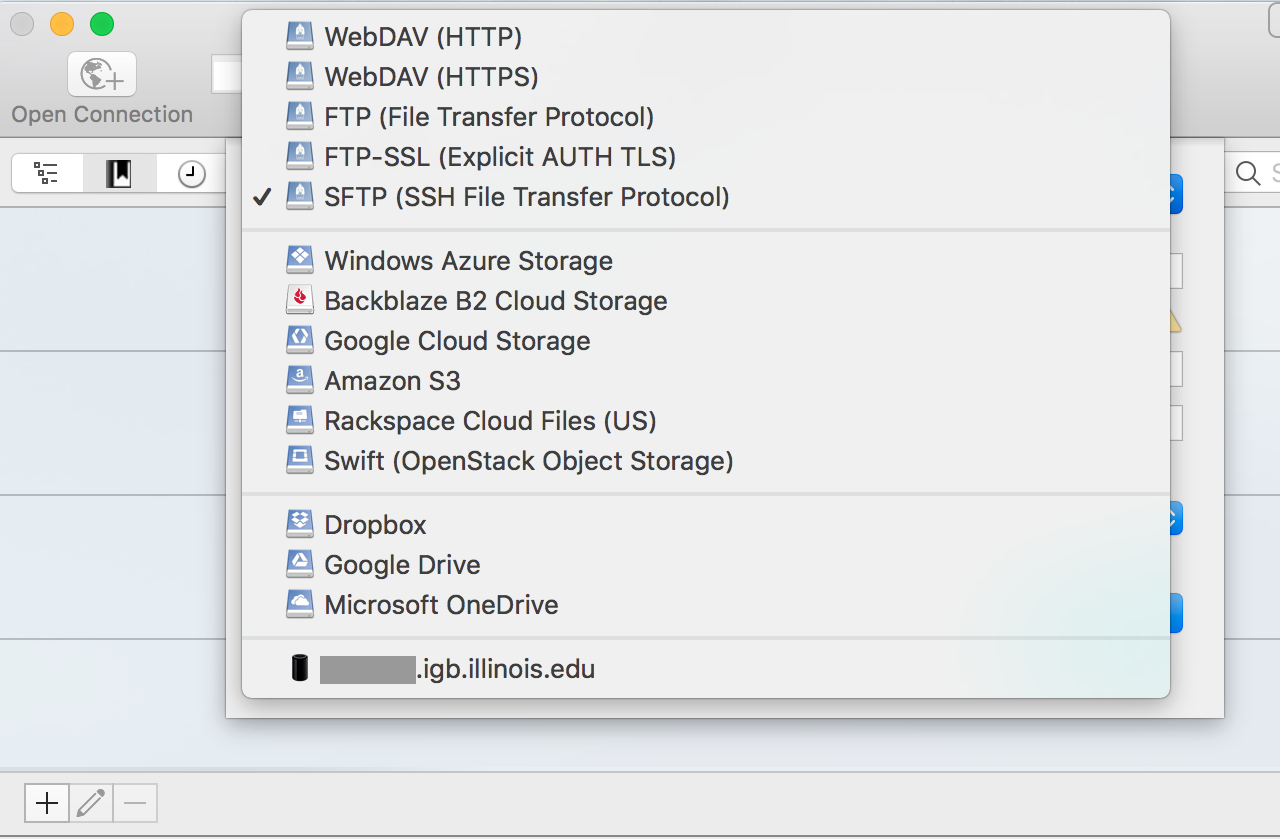
<h2>Connect From OSX Using CyberDuck (Very Secure)</h2><ul><li>To download cyberduck go to [http://cyberduck.ch http://cyberduck.c] and click on the large Zip icon to download.</li><li>Once cyberduck is installed on OSX you may start the program.</li><li>Click on '''Open Connection.'''</li><li>From the drop down menu at the top of the popup window select '''SFTP(SSH File Transfer Protocol)''' | |||
[[File:Cyberduck screenshot sftp.png|none]]</li></ul> | |||
<ul><li>Now in the '''Server:''' input box enter '''file-server.igb.illinois.edu''' and for Username and password enter your IGB credentials.</li></ul> | |||
[[File:Cyberduck screenshot sftp.png|none]] | |||
[[File:Cyberduck inputbox.png]] | [[File:Cyberduck inputbox.png]] | ||
<ul><li>Click '''Connect.'''</li><li>You may now drag and drop files in and out of your file server folder.</li></ul><h2>Connect From OSX (Not Secure)</h2><ul><li>This is an easy way to connect when inside IGB or campus. This is not a secure connection and it will not work outside campus.</li><li>Click on Go >> '''Connect to Server...''' >> type '''smb://file-server.igb.illinois.edu''' for the server address and click '''connect'''.</li><li>Select the folder you would like to connect to from the drop down list and click OK</li><li>Use your IGB username and password and click OK.</li></ul> | |||
<h2>Connect From OSX (Not Secure)</h2><ul><li>This is an easy way to connect when inside IGB or campus. This is not a secure connection and it will not work outside campus.</li><li>Click on Go >> '''Connect to Server...''' >> type '''smb://file-server.igb.illinois.edu''' for the server address and click '''connect'''.</li><li>Select the folder you would like to connect to from the drop down list and click OK</li><li>Use your IGB username and password and click OK.</li></ul> | |||
Revision as of 13:16, 5 September 2018
File Server Policy
By using the file server you agree to follow the File Server Policy
Connect From Windows (Not Secure)
- This is an easy way to connect when inside IGB or campus. This is not a secure connection and it will not work outside campus
- In Windows 7/10: Click on the Windows Icon in the lower left of your desktop, enter \\file-server.igb.illinois.edu and hit Enter on your keyboard.
- Enter your IGB username and password.
Connection Problems
If you are on a computer that is on the UIUC or UOFI domain, make sure you do the following:
- Put IGB\YourNetID in the Username field
- Make sure the Domain is listed as IGB
- Put in your password
Connect From Windows Using WinSCP (Very Secure)
- WinSCP allows you to connect to the file-server from anywhere in the world.
- Download WinSCP installation package from http://winscp.net/eng/download.php#download2 and install it.
- Once installed Run WinSCP >> enter file-server.igb.illinois.edu for the Host name >> Enter your IGB user name and password and click Login
- Once you hit "Login", you should be connected to the file server, as shown below.

Connect From OSX Using CyberDuck (Very Secure)
- To download cyberduck go to http://cyberduck.c and click on the large Zip icon to download.
- Once cyberduck is installed on OSX you may start the program.
- Click on Open Connection.
- From the drop down menu at the top of the popup window select SFTP(SSH File Transfer Protocol)


- Now in the Server: input box enter file-server.igb.illinois.edu and for Username and password enter your IGB credentials.

- Click Connect.
- You may now drag and drop files in and out of your file server folder.
Connect From OSX (Not Secure)
- This is an easy way to connect when inside IGB or campus. This is not a secure connection and it will not work outside campus.
- Click on Go >> Connect to Server... >> type smb://file-server.igb.illinois.edu for the server address and click connect.
- Select the folder you would like to connect to from the drop down list and click OK
- Use your IGB username and password and click OK.